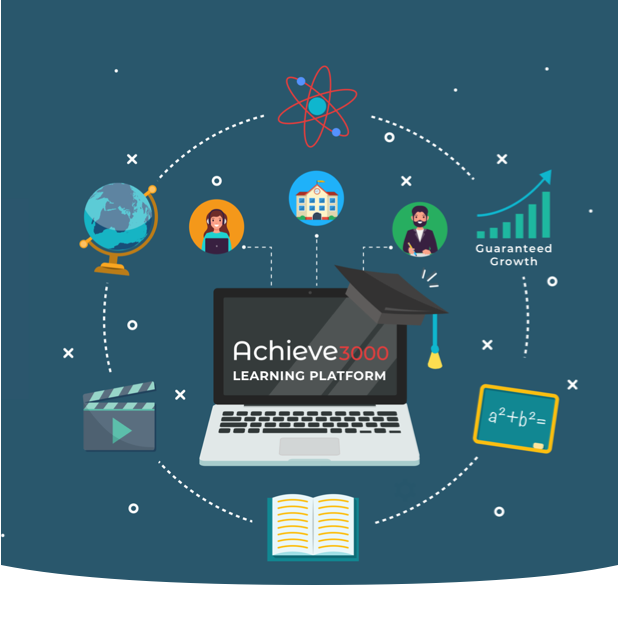
For more than 20 years, Achieve3000 has been empowering educators and helping them unlock student potential and accelerate learning growth. Now, more than ever, schools and districts need proven solutions that can help them address unfinished learning and prepare students for success.
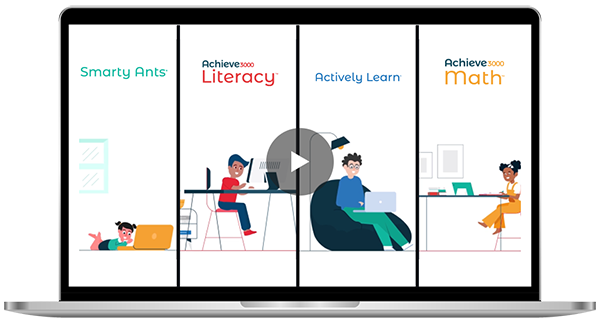
Whether you're solving for immediate needs or planning for the future, our differentiated and targeted online solutions help students reach their academic goals. Watch the video to learn more about our flexible and proven solutions.
Ensure all students in grades 3-12, especially the most vulnerable, continue to accelerate their literacy growth to get on-track for success.
ACHIEVE3000 LITERACY
Support students' math fluency and skills mastery through individualized practice. It's like having a personal tutor for every student in grades K-12.
ACHIEVE3000 MATH
Provide districts with the flexibility to centralize and customize their approach to content-area learning anytime, anywhere for grades 3-12.
ACTIVELY LEARN
Prepare young learners in grades PreK-2 to become independent readers with multisensory and adaptive literacy instruction.
Smarty AntsFill out the form below, or call 1-800-838-8771.
Achieve3000 may use your contact information to provide you with materials that we believe are of interest. You may choose to opt-out of receiving additional materials at any time by contacting our customer service, sending an email to Achieve3000’s local privacy official, or selecting “unsubscribe” at the bottom of any email you receive from us.
Founded with the mission to transform literacy one student, one teacher, and one district at a time, Achieve3000 has been unlocking potential and accelerating learning for over 21 years.

More than 5,000,000 students and 310, 500 teachers are currently experiencing the power of Achieve3000’s solutions firsthand.

Teachers in every subject rely on Achieve3000’s solutions to promote equity, increase engagement, and accelerate learning in their classes.

Schools and districts in all 50 states use Achieve3000’s proven learning solutions to help their students reach their goals.

For over a decade, Achieve3000 has been helping international schools accelerate learning, increase access, and improve English proficiency.